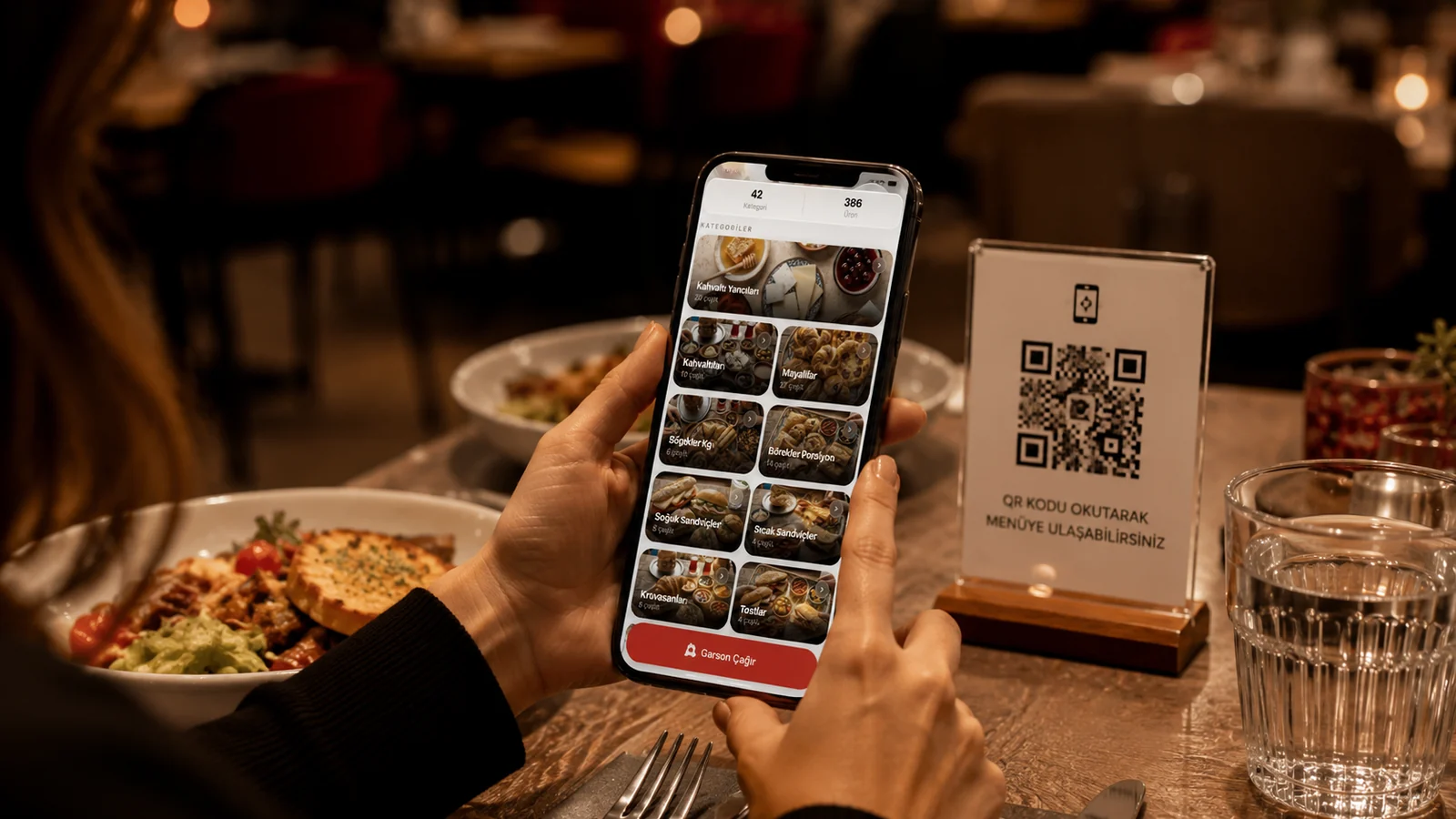
You placed a QR menu on the table, but how do guests actually scan it? The good news: almost every phone today reads QR codes straight from the camera, with no extra app. The guest points the camera at the code, taps the link that appears and your menu opens in the browser. In this guide we cover scanning on iPhone and Android, common problems and what you can do so guests open your menu in seconds.
How to Scan a QR Code on iPhone
- Open the built-in Camera app.
- Point the camera at the QR code and hold it steady for a moment.
- Tap the link notification that appears at the top.
- The menu opens in Safari; you can close the camera.
How to Scan a QR Code on Android
On most current Android phones the Camera app also recognises QR codes automatically. Just point the camera at the code and tap the link that appears. On some older devices this is off; if so, enable "scan QR codes" in the Camera settings or use Google Lens. Google Lens opens from inside the camera app or via the camera icon in the Google app's search bar; as soon as the code is in frame, the link appears.
Scanning Problems and Fixes
- Code won't read: move the phone a little further from the code; too close and the camera can't focus.
- In dim light: increase the table light or turn on the phone's flashlight.
- If there's glare: tilt the phone slightly; glass or glossy table covers cause reflections.
- If the code is dirty/worn: clean it or print a fresh one; scratched codes won't read.
Smooth scanning depends largely on the quality and placement of the QR code. With ROXQR you create a sharp, high-resolution QR code, download it and place it on tables; when you update the menu the code stays the same, so guests always see the current menu. Guests install no app and sign up for nothing; the menu opens directly in the browser, in their own language and with allergen info. To set it up in minutes, explore our QR menu solution and try it free.