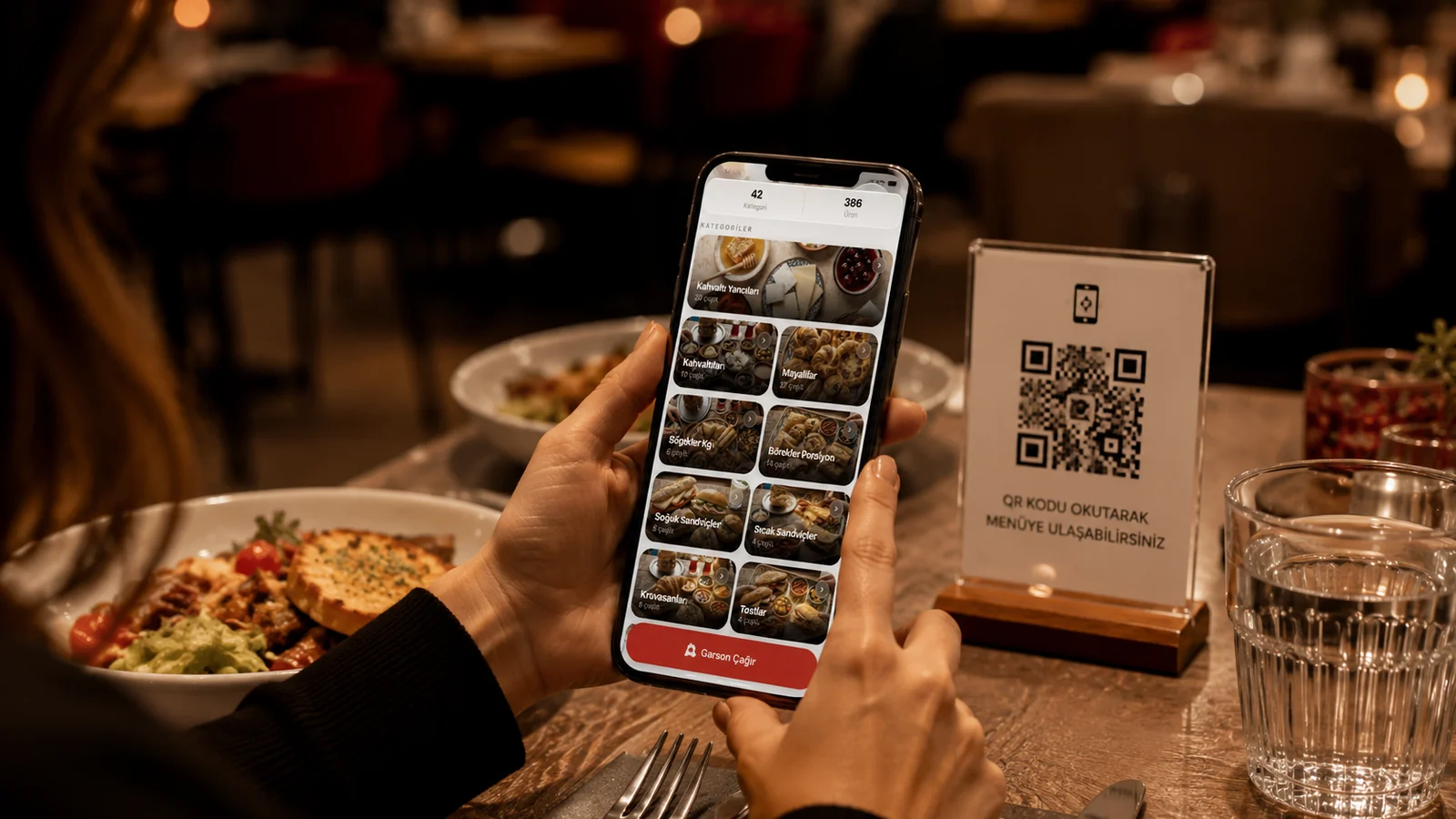
With a printed menu, changing even a single price means days of redesign, printing and distribution — and meanwhile the card on the table shows the wrong price. With a digital menu the change is made in one place and goes live instantly. This guide covers practical ways to update your menu in real time and how ROXQR cuts that work down to minutes.
When Does a Menu Need Updating?
- Price changes: cost increases, promotions or happy-hour pricing.
- Stock status: hiding a sold-out item to spare guests the disappointment.
- Seasonal menu: summer desserts, winter soups or holiday specials.
- Content fixes: new photos, descriptions, allergen info or translations.
Practical Ways to Update Your Menu Instantly
- Edit from one panel: change a price, description or photo; it goes live the moment you save.
- Hide, don't delete: deactivate a sold-out item with one click and turn it back on later.
- Update in bulk: apply a price rise to a whole category or swap a seasonal menu at once.
- Update translations together: write in the main language and keep the rest in sync; the QR code stays the same.
What all of these share: the moment you make a change, the menu on the guest's phone updates too. No reprinting the QR code on tables, no collecting old cards. With ROXQR's digital menu solution, price, stock and seasonal changes go live in seconds from one panel; there's no app to install — the menu opens straight in the browser.
Tips for Updating Without Mistakes
- Make the main language the single source: edit it first, then sync translations.
- Keep allergen info current: when an ingredient changes, refresh the label too.
- Publish off-peak: schedule big changes before the rush.
- Preview before going live: check the menu once as the guest will see it.