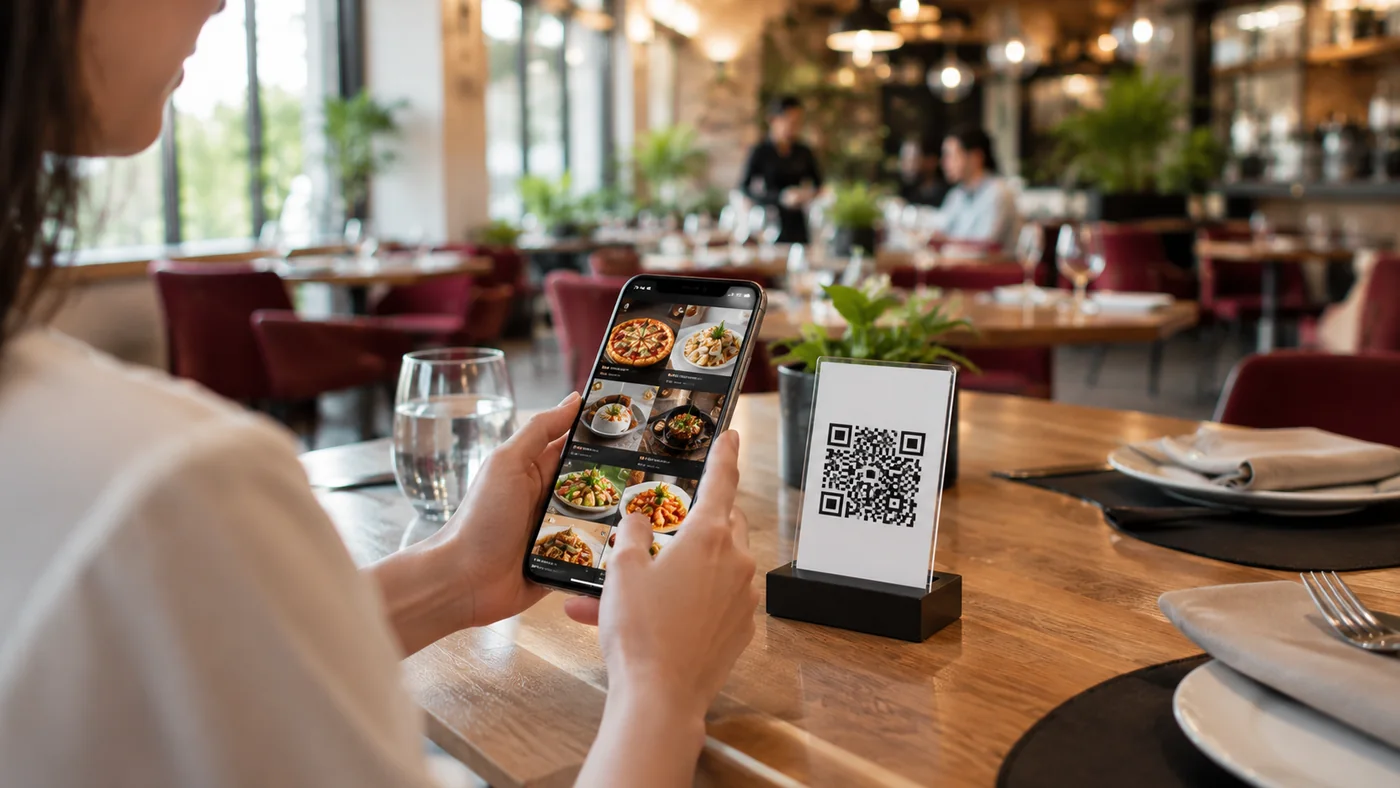
Takeaway and delivery are no longer a side line for restaurants and cafes; for many they define a large share of revenue. But pinning a printed menu to the door or reading items one by one over the phone slows things down and adds mistakes. A QR menu solves this: a single code on the window, the door or the counter takes your customer to an up-to-date menu with no app to install. In this guide we explain how a QR menu speeds up takeaway and delivery, and how ROXQR lets you set it up in minutes.
Why a QR Menu Works for Takeaway and Delivery
At the table the guest is already seated; for takeaway the decision is made on the phone or at the door, often in a hurry. So a fast-loading menu, clear photos, correct prices and instantly hiding sold-out items become critical. A QR menu brings it all to one screen: the guest scans the code with the camera, the menu opens in the browser, no sign-up or app required. When you hide a sold-out item from the panel, the change goes live instantly and the risk of a wrong order disappears.
Steps to Set Up a QR Menu for Pickup and Delivery
- Build a takeaway-friendly menu: make portions, extras and sauces clear.
- Add clear photos, allergen labels and current prices to each item.
- Publish the menu in your guests' languages alongside your own.
- Download the QR code and add it to the window, door, counter and takeaway bags.
- During rush hours hide sold-out items from the panel instantly; the QR stays the same.
With ROXQR you can prepare a multilingual QR menu with no app or installation in minutes, create a separate poster for takeaway and delivery and add it to your bags. See our digital menu solution for details; start a free trial at app.roxpos.com.
What to Watch for in a Takeaway QR Menu
- Add the code to bags, boxes and receipts so the customer finds it easily next time.
- State pickup and delivery hours clearly on the menu to avoid wrong expectations.
- Fill in allergen labels fully; the customer can't ask at the table, so the info must be written.
- Keep the menu updated; since there's no printing, prices and items always stay correct.