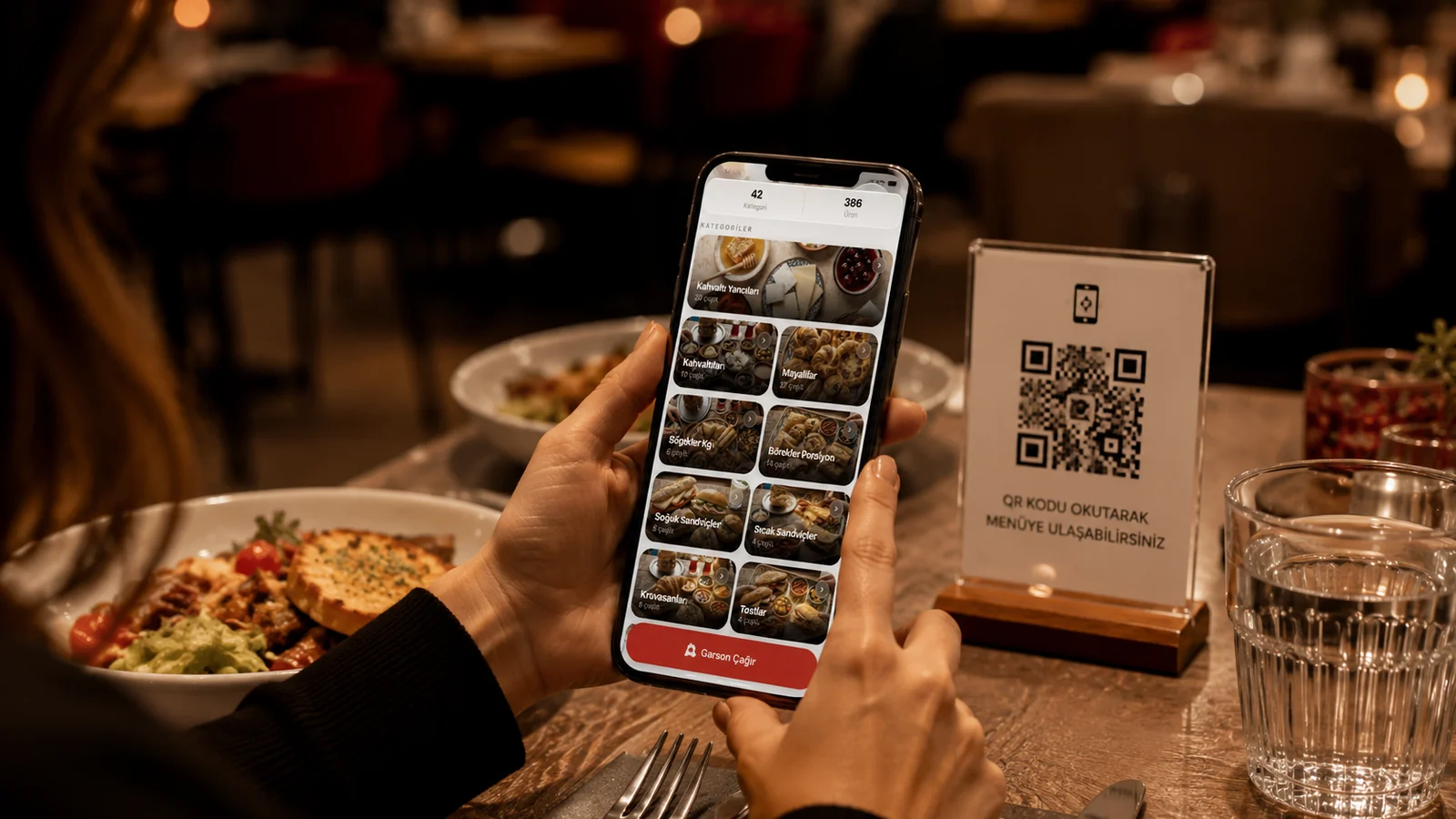
What sells on a menu is often decided not by the dish itself but by the order in which the guest sees it. Grouping categories logically and sequencing them well helps guests find what they want quickly, and every second you save them moves the ordering decision forward. In this guide we explain how to group menu categories, what order to arrange them in, and how to update them effortlessly in a QR menu.
How Should You Group Categories?
A good category structure mirrors how guests think about a meal: starters first, then mains, then desserts and drinks. As the number of items grows, splitting categories into narrower sub-sections reduces the search effort — instead of a single 'Mains', keep 'Meat', 'Chicken' and 'Vegetarian' separate. The goal is for any guest to reach the section they want in at most two taps.
What Logic Should Drive the Ordering?
- Follow the meal flow: starters, mains, desserts, drinks. Match the guest's natural reading order.
- Place the high-margin categories you want to push near the top of the list.
- Move seasonal or promotional sections to the top temporarily, then move them back when the period ends.
- Merge low-selling or overlapping categories; very long lists make decisions harder.
Category Tips for the Mobile Screen
- Keep category names short: one word, two at most. Long titles overflow on small screens.
- Use a top navigation bar that gives quick access to frequently sought categories (drinks, desserts).
- Keep allergen and ingredient info visible in every category; trust grows as the guest browses.
- Hide empty or sold-out categories so guests don't waste time on what they cannot order.
With ROXQR you can reorder categories in seconds by drag and drop, split them into sub-sections and hide or show seasonal sections whenever you like. Your menu is served in multiple languages from a single QR code — no app to install, no setup, and changes go live instantly. Explore our QR menu solution; you can try it free in minutes.