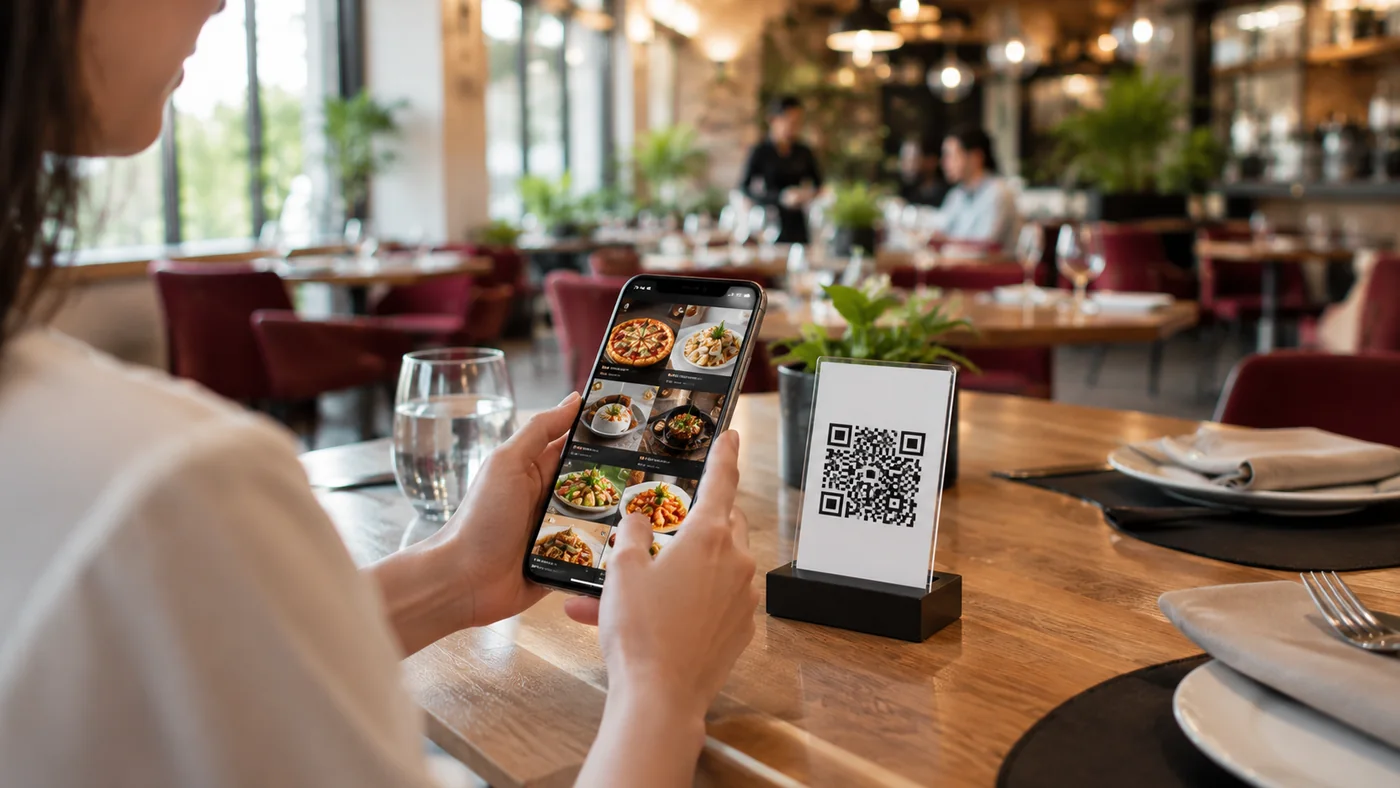
When a guest sits down in a dimly lit restaurant in the evening and opens your QR menu, a screen full of white background strains the eyes. This is exactly where dark mode helps: light text on a dark surface is easy on the eyes in low light and makes reading the menu pleasant. Accessibility is broader still; it means your menu can be read easily by everyone, including older guests, people with low vision, or those sitting in bright sunlight. In this guide we explain why dark mode and accessibility matter in a QR menu, what to watch out for, and how to apply them in practice.
Why Dark Mode Matters in a QR Menu
Most restaurants and cafes prefer a dim atmosphere in the evening. In that setting a bright white screen disturbs the guest and breaks the warm mood at the table. Dark mode lowers screen brightness, rests the eyes, reduces battery drain and keeps your menu in tune with the venue's ambience. Many guests have also already set their phone to dark mode system-wide; when your menu follows that preference automatically, the guest meets a familiar, comfortable experience without changing any settings.
What an Accessible QR Menu Should Have
- Sufficient contrast: a clear difference between text and background; avoid faint grey text.
- Readable font size: don't cram with tiny fonts; categories and prices should read easily.
- Descriptive product images and text: don't rely on colour alone, support with labels.
- Clear allergen information: open, up-to-date allergen labels on every item; no guessing for the guest.
- Multilingual support: guests can read in their own language; no guessing for foreign guests.
Applying Dark Mode and Accessibility in Practice
- Build your menu digitally: categories, products, photos, prices and allergen information.
- Choose a clean, consistent design; use few colours, strong contrast and a readable typeface.
- Test your menu in both light and dark mode on a real phone; make sure it reads well in low light.
- Gather feedback from guests; fix anything hard to read and update the menu instantly.
With ROXQR you can build a multilingual, accessible QR menu that supports dark mode in minutes. There's no app to install and no setup; the guest scans the code and the menu opens straight in the browser. You can try it free, add allergen labels and update your menu anytime. Explore our QR menu solution for details.